
Step-by-Step Platform Walkthrough
How to Build a Reader Compliant Resume
Watch the complete walkthrough video below, or scroll down to follow the step-by-step visual guide.
Connect Your Preferred AI Engine
Choose how ApplyAssists generates your resume content. You can plug in a custom Gemini or OpenAI API key to power your account directly, or click “Skip – use platform keys” to start immediately without any extra setup.
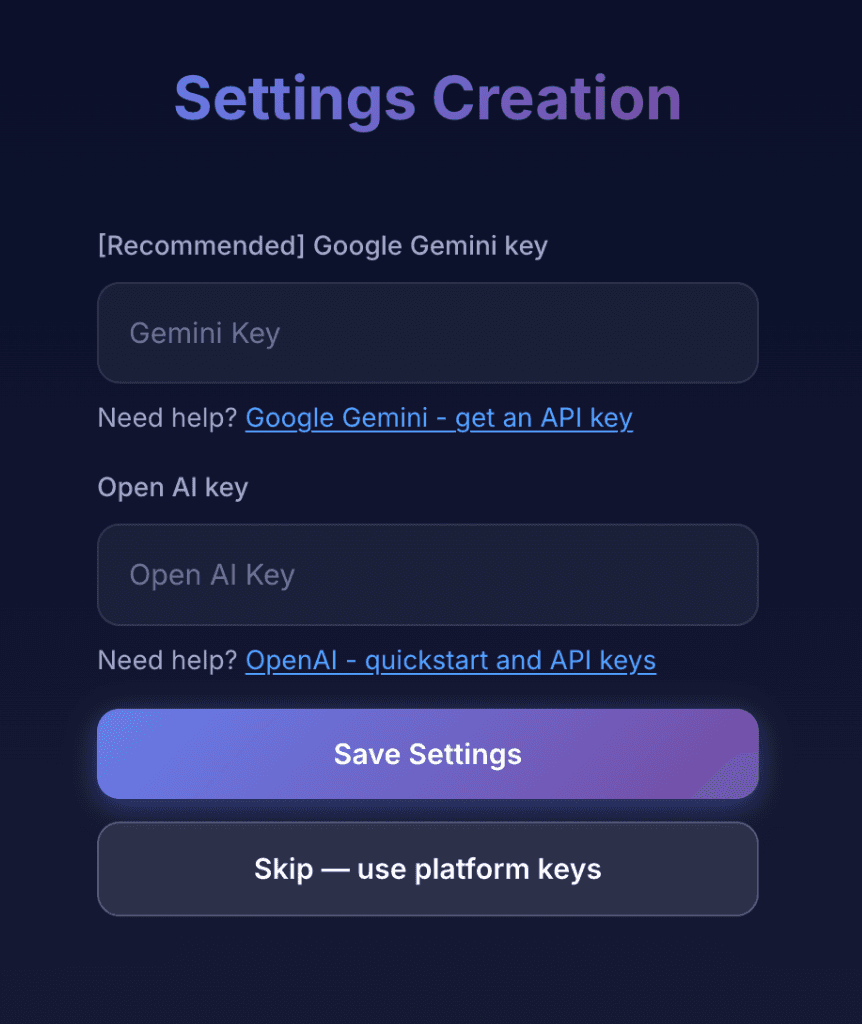
Pro-Tip: Using your own Google Gemini API key keeps usage extremely cost-effective while giving you dedicated performance.
Connect Your Preferred AI Engine
Choose how ApplyAssists generates your resume content. You can plug in a custom Gemini or OpenAI API key to power your account directly, or click “Skip – use platform keys” to start immediately without any extra setup.
Pro-Tip: Using your own Google Gemini API key keeps usage extremely cost-effective while giving you dedicated performance.
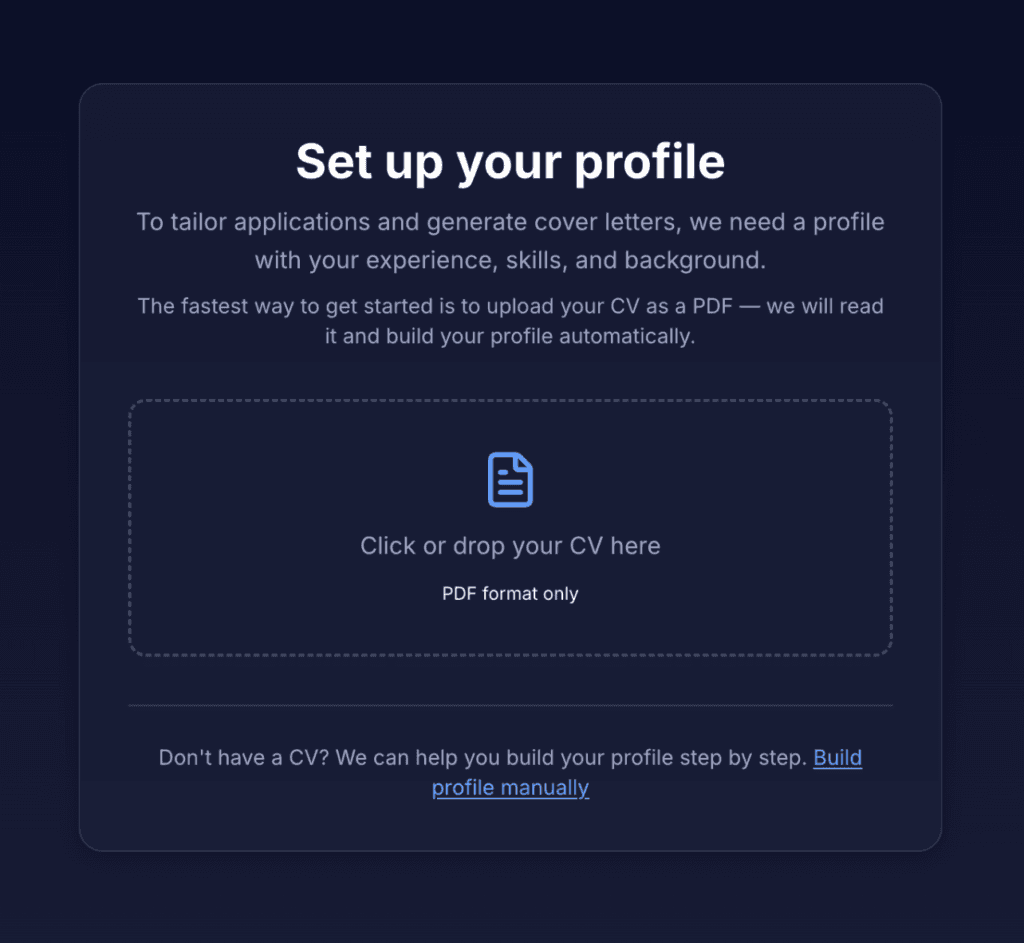
Set Up Your Master Profile
Build the foundation used to generate tailored applications and cover letters:
Fast Track: Click or drop your PDF CV into the upload box to auto-populate your background, skills, and experience instantly.
Custom Track: Select “Build profile manually” to enter your information step-by-step.
Set Up Your Master Profile
Build the foundation used to generate tailored applications and cover letters:
• Fast Track: Click or drop your PDF CV into the upload box to auto-populate your background, skills, and experience instantly.
• Custom Track: Select “Build profile manually” to enter your information step-by-step.
Review Profile & Run AI Base Optimization
Check your auto-populated personal details, skills inventory, and work experience.
Launch Optimization: Click “Optimize profile” at the top of your dashboard.
Automated Polish: The AI engine instantly reformats your experience and refines your skills inventory.
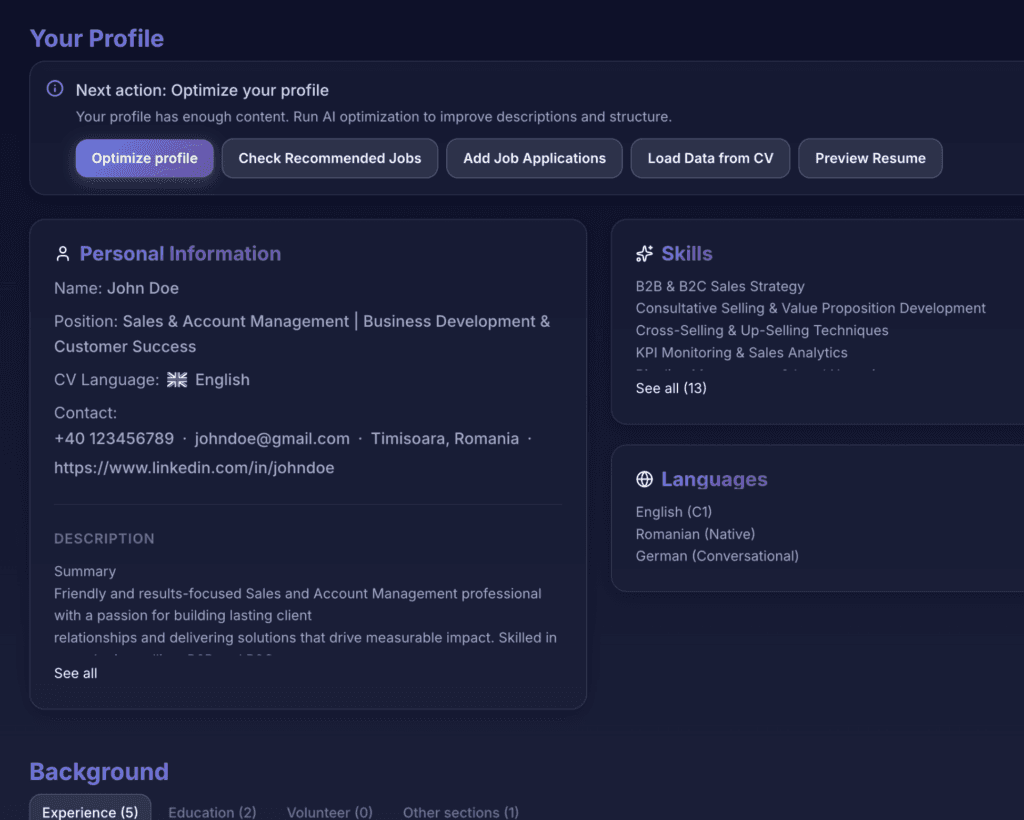
Pro-Tip: Run this initial base optimization to create your master resume, so every future job-specific resume starts from a strong, high-quality foundation.
Review Profile & Run AI Base Optimization
Check your auto-populated personal details, skills inventory, and work experience.
• Launch Optimization: Click “Optimize profile” at the top of your dashboard.
• Automated Polish: The AI engine instantly reformats your experience and refines your skills inventory.
Pro-Tip: Run this initial base optimization to create your master resume, so every future job-specific resume starts from a strong, high-quality foundation.
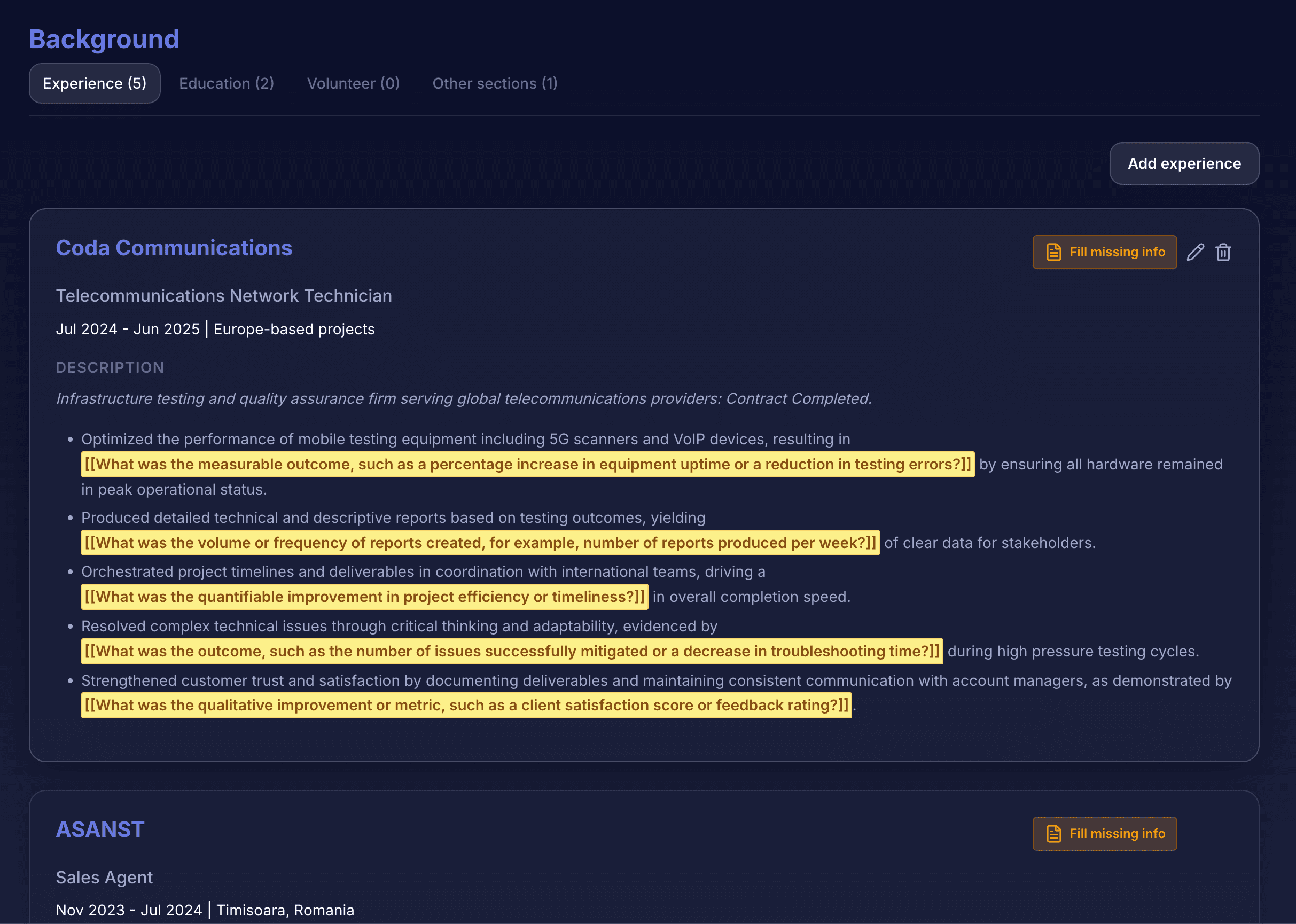
Identify Missing Metrics & Placeholders
Replace highlighted AI prompts with your actual numbers to build high-impact Google XYZ bullet points:
Review Highlighted Experience Entries: Scroll down to find yellow-highlighted [[text]] placeholders embedded in your work history.
Quantify Your Impact: Enter numbers, percentages, or frequencies to turn generic duties into business achievements.
Identify Missing Metrics & Placeholders
Replace highlighted AI prompts with your actual numbers to build high-impact Google XYZ bullet points:
• Review Highlighted Experience Entries: Scroll down to find yellow-highlighted [[text]] placeholders embedded in your work history.
• Quantify Your Impact: Enter numbers, percentages, or frequencies to turn generic duties into business achievements.
Fill Placeholders (Quick Fill)
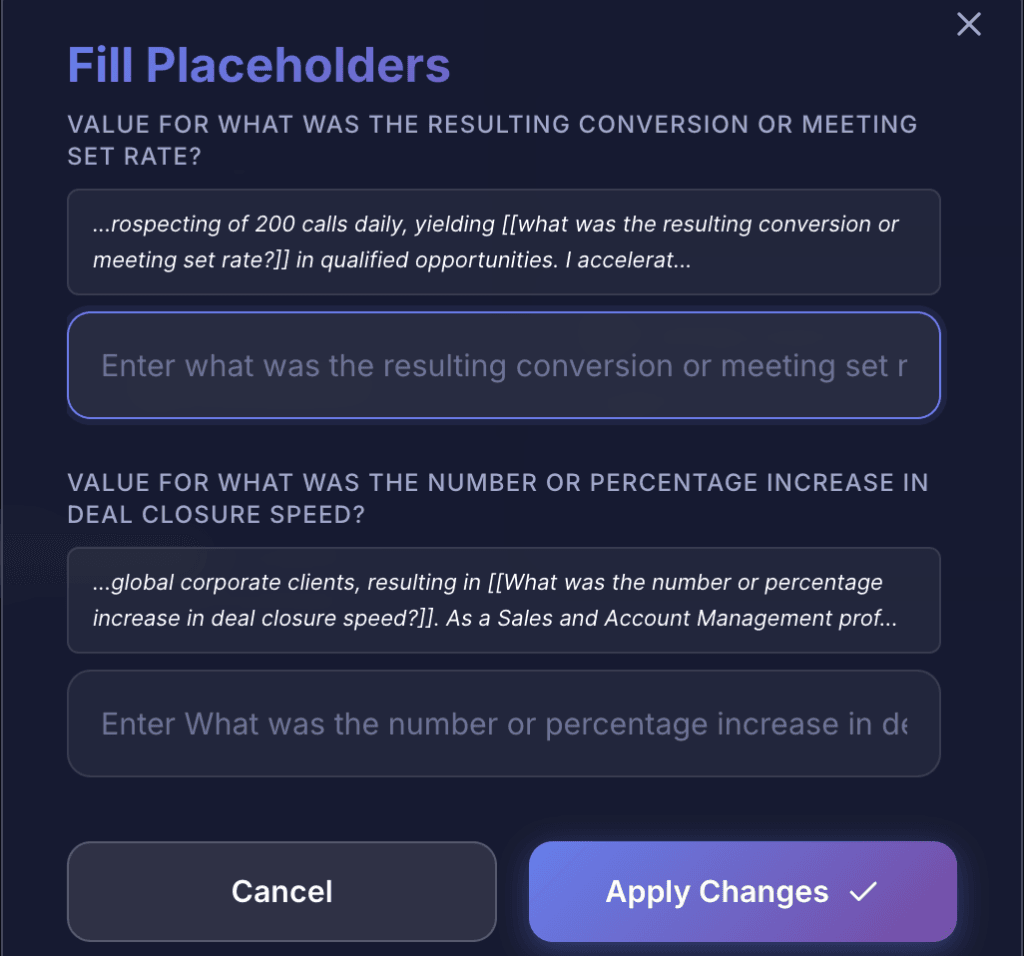
Use the streamlined popup modal to complete missing details across entire entries in seconds:
Open Guided Modal: Click “Fill missing info” on any experience card to view all prompt fields in one place.
Batch Input: Enter your metrics into the dedicated text boxes and click “Apply Changes” to update all highlighted placeholders automatically.
Fill Placeholders (Quick Fill)
Use the streamlined popup modal to complete missing details across entire entries in seconds:
• Open Guided Modal: Click “Fill missing info” on any experience card to view all prompt fields in one place.
• Batch Input: Enter your metrics into the dedicated text boxes and click “Apply Changes” to update all highlighted placeholders automatically.
Manual Editing & AI Rephrasing
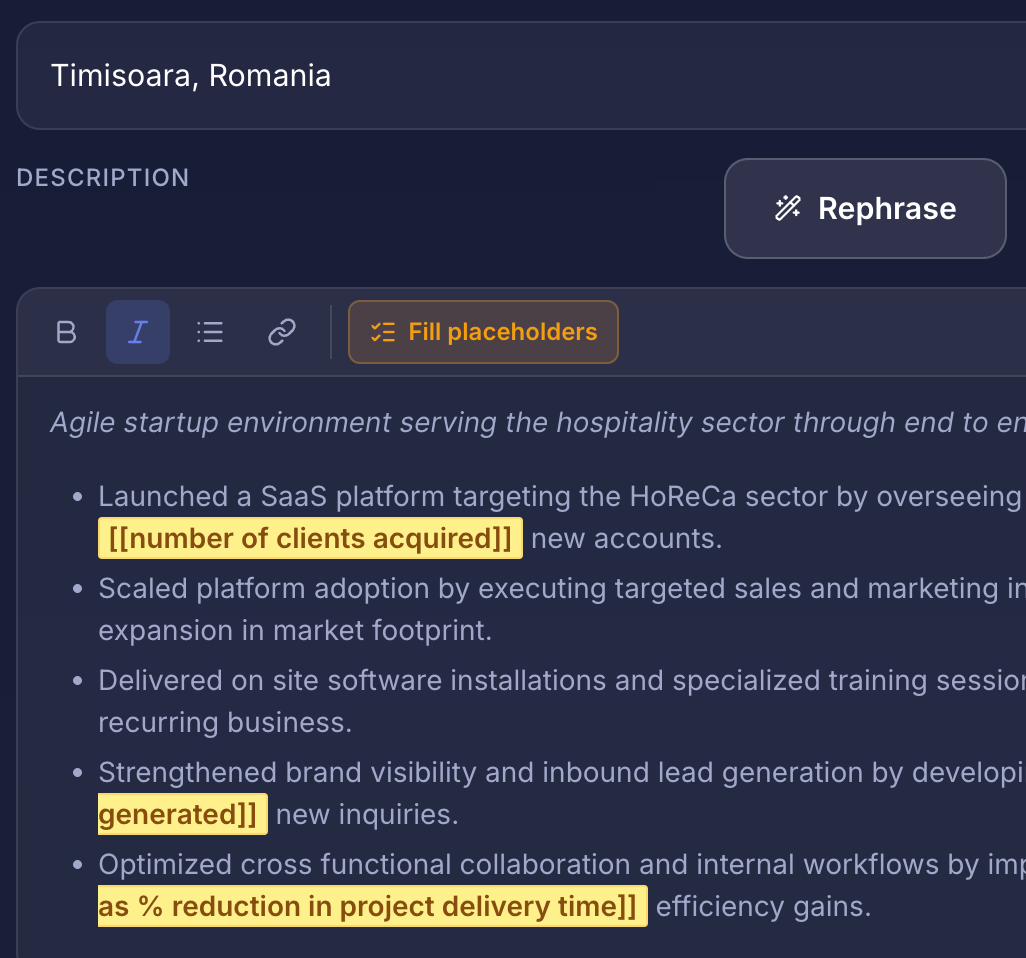
Take full granular control over your bullet points with built-in rich text and rephrasing tools:
Full Text Control: Click the Pencil icon on any entry to directly edit, delete, or rearrange your bullet points.
AI Rephrasing: Highlight any sentence and click “Rephrase” to generate polished, high-impact variations tailored to modern resume standards.
Manual Editing & AI Rephrasing
Take full granular control over your bullet points with built-in rich text and rephrasing tools:
• Full Text Control: Click the Pencil icon on any entry to directly edit, delete, or rearrange your bullet points.
• AI Rephrasing: Highlight any sentence and click “Rephrase” to generate polished, high-impact variations tailored to modern resume standards.
Add Your First Job Application
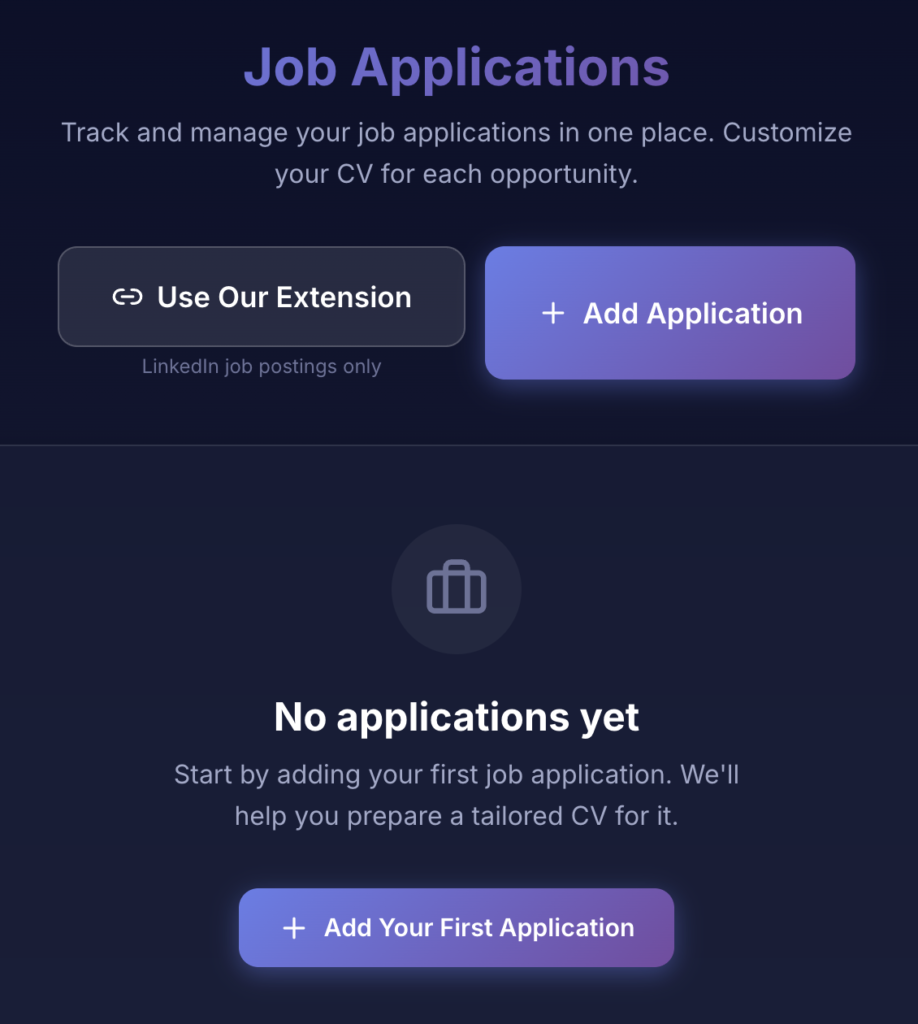
Transition from general profile setup to active job targeting by building your application list:
Open Job Dashboard: Navigate to Job Applications to view and manage all your targeted roles in one place.
Add Custom Application: Click “+ Add Application” (or “Add Your First Application”) to open the job entry form.
Chrome Extension Shortcut: Click “Use Our Extension” to grab job postings directly while browsing LinkedIn without copying and pasting manually.
Add Your First Job Application
Transition from general profile setup to active job targeting by building your application list:
• Open Job Dashboard: Navigate to Job Applications to view and manage all your targeted roles in one place.
• Add Custom Application: Click “+ Add Application” (or “Add Your First Application”) to open the job entry form.
• Chrome Extension Shortcut: Click “Use Our Extension” to grab job postings directly while browsing LinkedIn without copying and pasting manually.
Add Application Details Manually
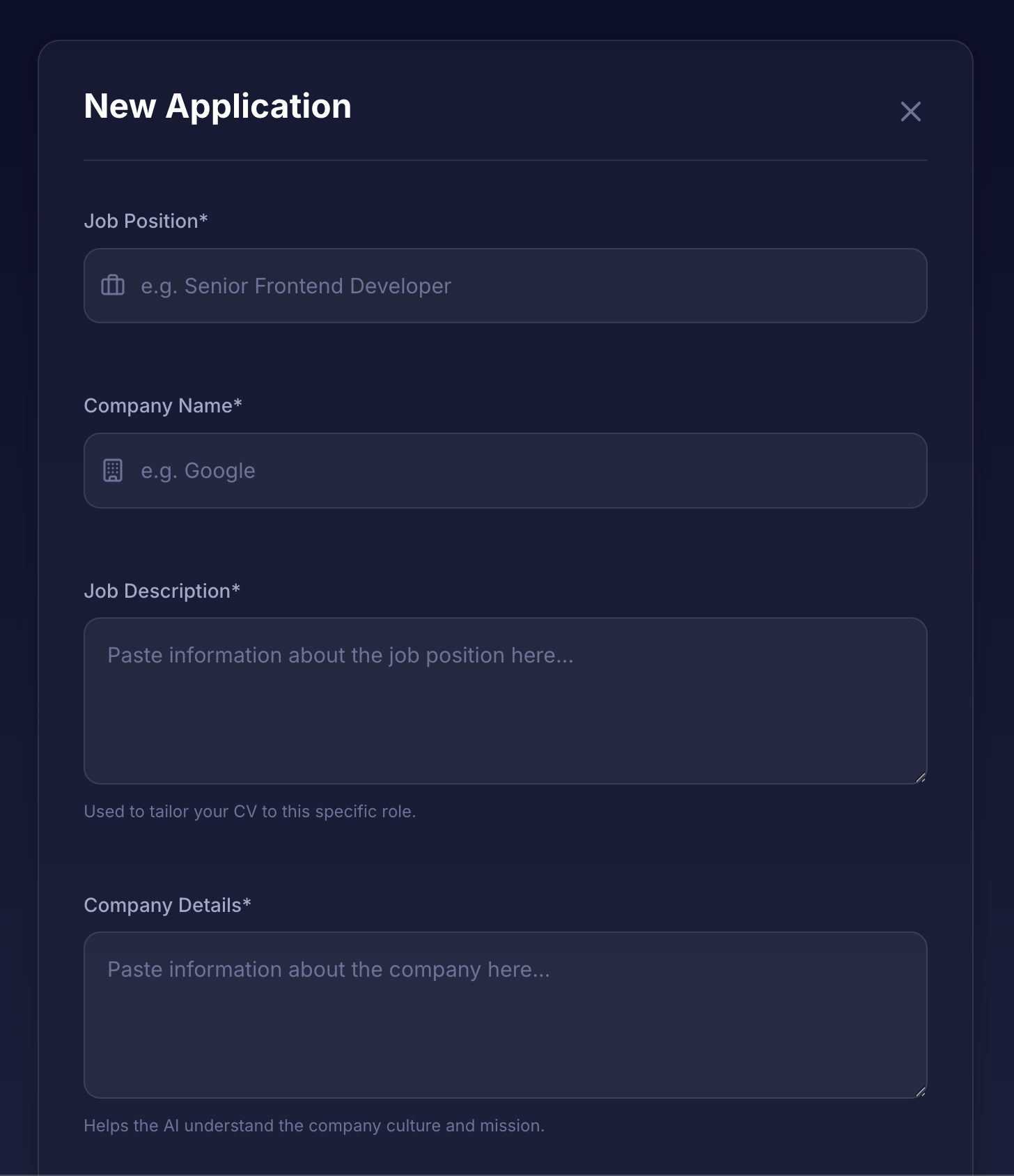
Fill in job specifics directly using the manual entry modal:
Enter Core Info: Input the Job Position title (e.g., Senior Frontend Developer) and Company Name (e.g., Google).
Paste Job Description: Paste the full job description into the dedicated text field – the AI uses this text to analyze required skills and tailor your CV.
Save & Prepare: Click Save to create the application card and initiate the profile match analysis.
Add Application Details Manually
Fill in job specifics directly using the manual entry modal:
• Enter Core Info: Input the Job Position title (e.g., Senior Frontend Developer) and Company Name (e.g., Google).
• Paste Job Description: Paste the full job description into the dedicated text field – the AI uses this text to analyze required skills and tailor your CV.
• Save & Prepare: Click Save to create the application card and initiate the profile match analysis.
Import via Chrome Extension
Streamline job imports directly from LinkedIn without leaving your browser:
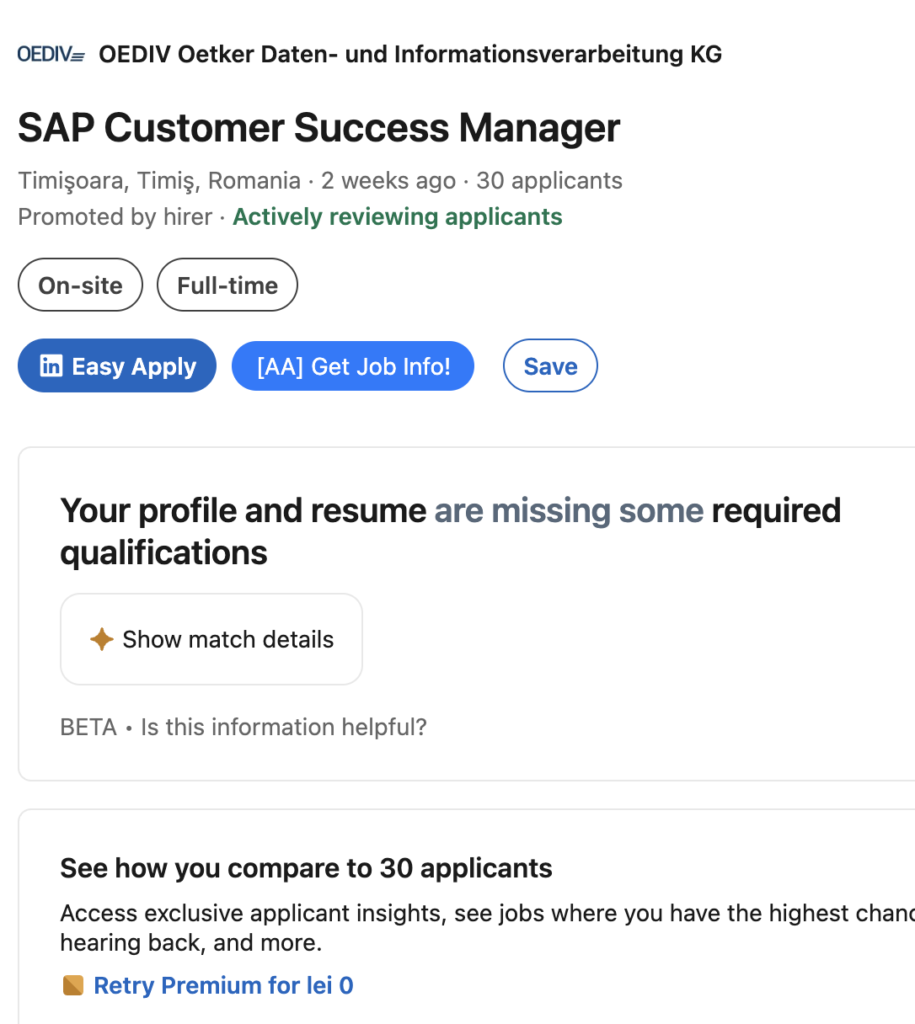
One-Click Capture: While viewing any job post on LinkedIn, click the blue [AA] Get Job Info! button overlaid on the page.
Instant Sync: ApplyAssists automatically extracts the job title, company, and complete description directly into your application dashboard.
Skip Manual Entry: Eliminate copy-pasting and start match analysis instantly.
Import via Chrome Extension
Streamline job imports directly from LinkedIn without leaving your browser:
• One-Click Capture: While viewing any job post on LinkedIn, click the blue [AA] Get Job Info! button overlaid on the page.
• Instant Sync: ApplyAssists automatically extracts the job title, company, and complete description directly into your application dashboard.
• Skip Manual Entry: Eliminate copy-pasting and start match analysis instantly.
STEP 7 (A)
Review Profile Match Rating
Evaluate how closely your overall background aligns with the target role:
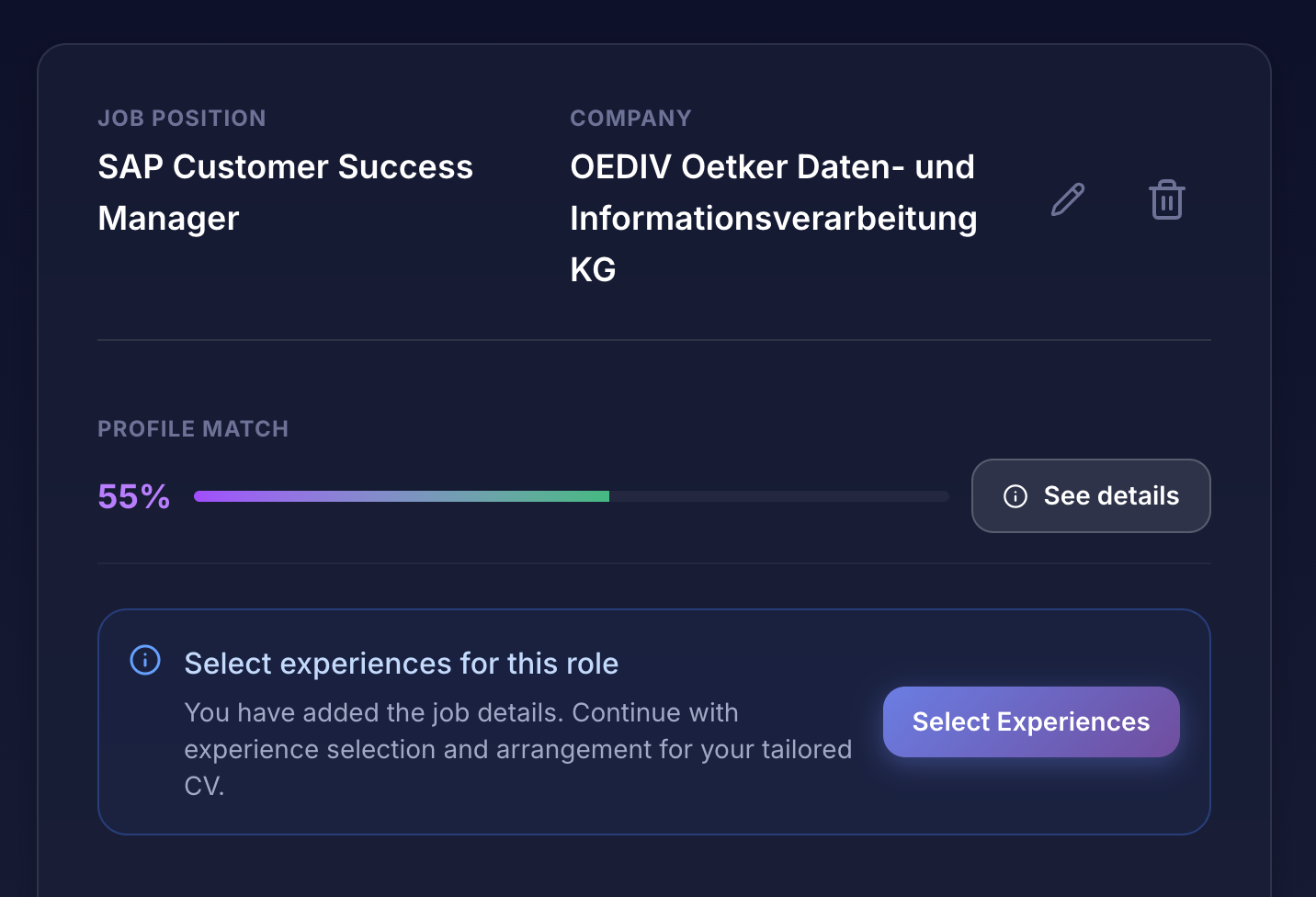
View Compatibility Score: Locate the Profile Match % bar at the top of your job application card for an instant fit snapshot.
Access Deep Analysis: Click the “See details” button next to your match score to open the detailed breakdown of your hard skills and experience gaps.
Next Action: Review the AI feedback to understand why certain skills matched and where potential coverage gaps exist.
Review Profile Match Rating
Evaluate how closely your overall background aligns with the target role:
• View Compatibility Score: Locate the Profile Match % bar at the top of your job application card for an instant fit snapshot.
• Access Deep Analysis: Click the “See details” button next to your match score to open the detailed breakdown of your hard skills and experience gaps.
• Next Action: Review the AI feedback to understand why certain skills matched and where potential coverage gaps exist.
Examine Match Rate Details
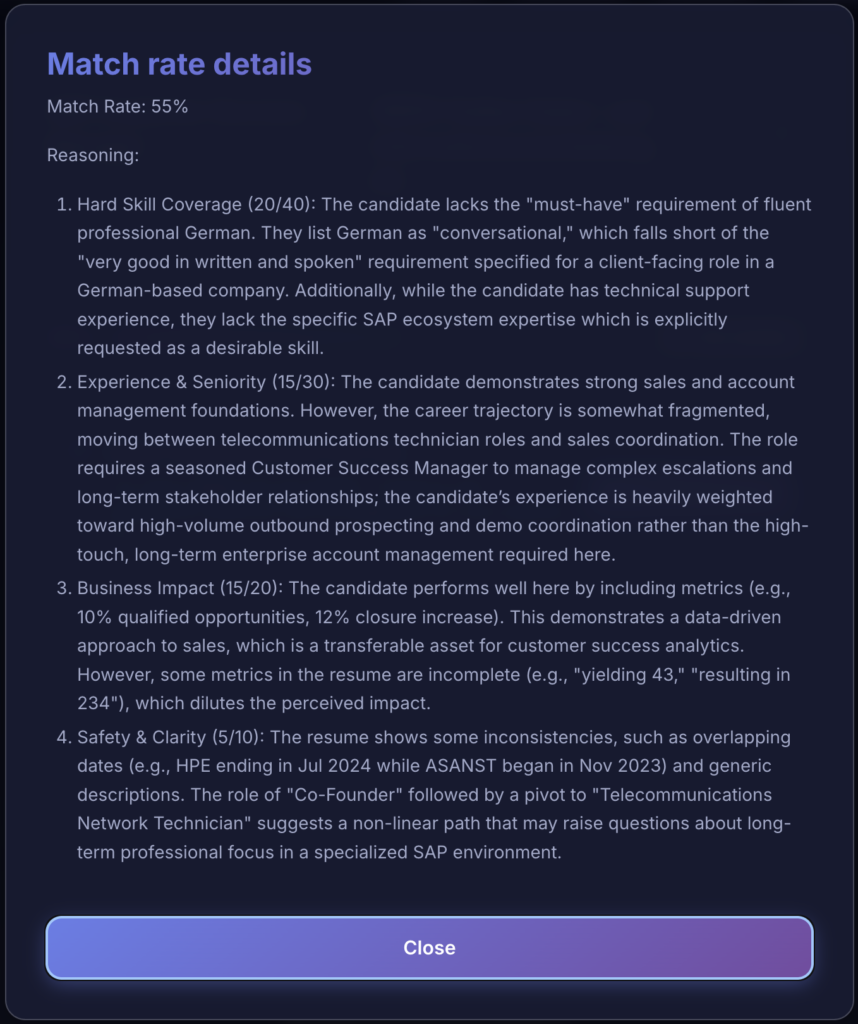
Review the deep-dive AI feedback to understand skill coverage, seniority alignment, and impact metrics:
Hard Skill Coverage: Check your score and review specific gaps (e.g., missing specific software or required language proficiency).
Seniority & Experience Fit: Analyze how your work history aligns with the employer’s operational requirements and title expectations.
Business Impact & Clarity: Identify which metrics strengthened your rating and fix minor inconsistencies before generating your resume.
Examine Match Rate Details
Review the deep-dive AI feedback to understand skill coverage, seniority alignment, and impact metrics:
• Hard Skill Coverage: Check your score and review specific gaps (e.g., missing specific software or required language proficiency).
• Seniority & Experience Fit: Analyze how your work history aligns with the employer’s operational requirements and title expectations.
• Business Impact & Clarity: Identify which metrics strengthened your rating and fix minor inconsistencies before generating your resume.
Review Experience Selection & Reasoning
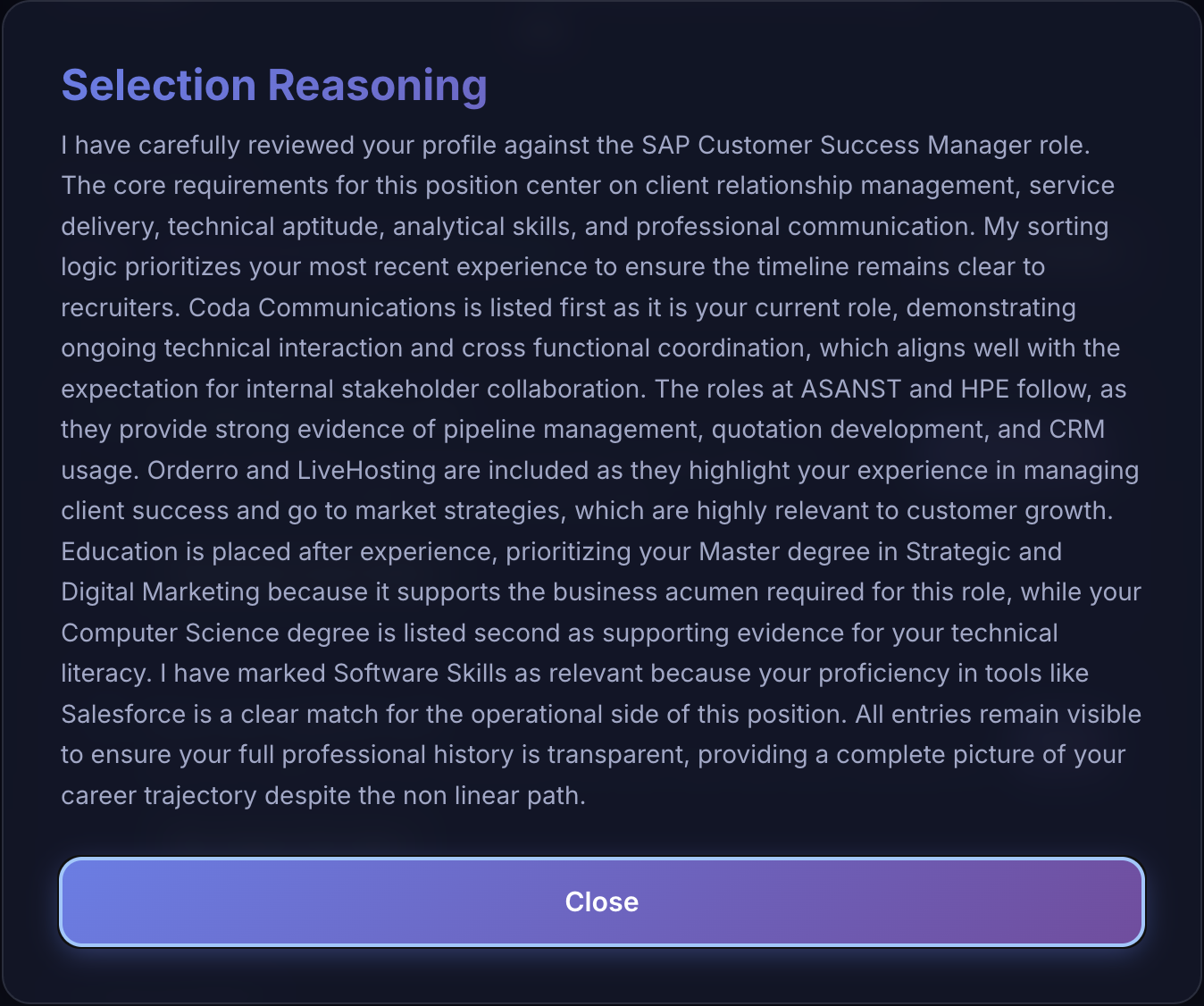
Understand how the AI categorizes past experience entries based on the job requirements:
Access AI Reasoning: Click “See reasoning” or “Select Experiences” to view why specific roles were marked as Relevant versus Supporting.
Verify Strategic Fit: Review the AI’s chronological and relevance logic – such as prioritizing backend engineering internships over academic research.
Prepare Manual Overrides: Check which entries are toggled as Visible in preview before fine-tuning your final resume layout.
Review Experience Selection & Reasoning
Understand how the AI categorizes past experience entries based on the job requirements:
• Access AI Reasoning: Click “See reasoning” or “Select Experiences” to view why specific roles were marked as Relevant versus Supporting.
• Verify Strategic Fit: Review the AI’s chronological and relevance logic – such as prioritizing backend engineering internships over academic research.
• Prepare Manual Overrides: Check which entries are toggled as Visible in preview before fine-tuning your final resume layout.
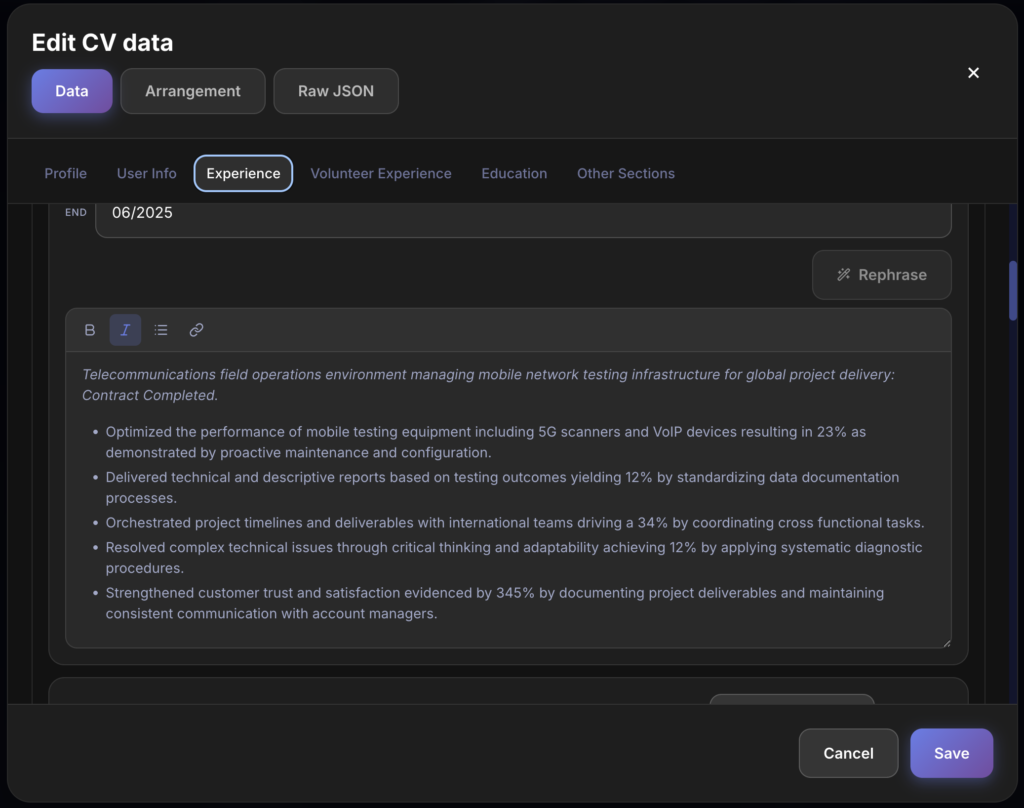
Tweak Experience Content
Tailor and polish specific bullet points on your CV with full rich-text controls and AI-powered optimization:
Manual Edit (Pencil Icon): Click the pencil icon on any experience card to open the full rich-text editor for granular control.
Focus & Rephrase: Highlight specific sentences and click “Rephrase” to generate professional variations tailored directly to the role.
Save & Apply: When satisfied with your edits, click “Save” to apply changes and prepare for CV generation.
Tweak Experience Content
Tailor and polish specific bullet points on your CV with full rich-text controls and AI-powered optimization:
• Manual Edit (Pencil Icon): Click the pencil icon on any experience card to open the full rich-text editor for granular control.
• Focus & Rephrase: Highlight specific sentences and click “Rephrase” to generate professional variations tailored directly to the role.
• Save & Apply: When satisfied with your edits, click “Save” to apply changes and prepare for CV generation.
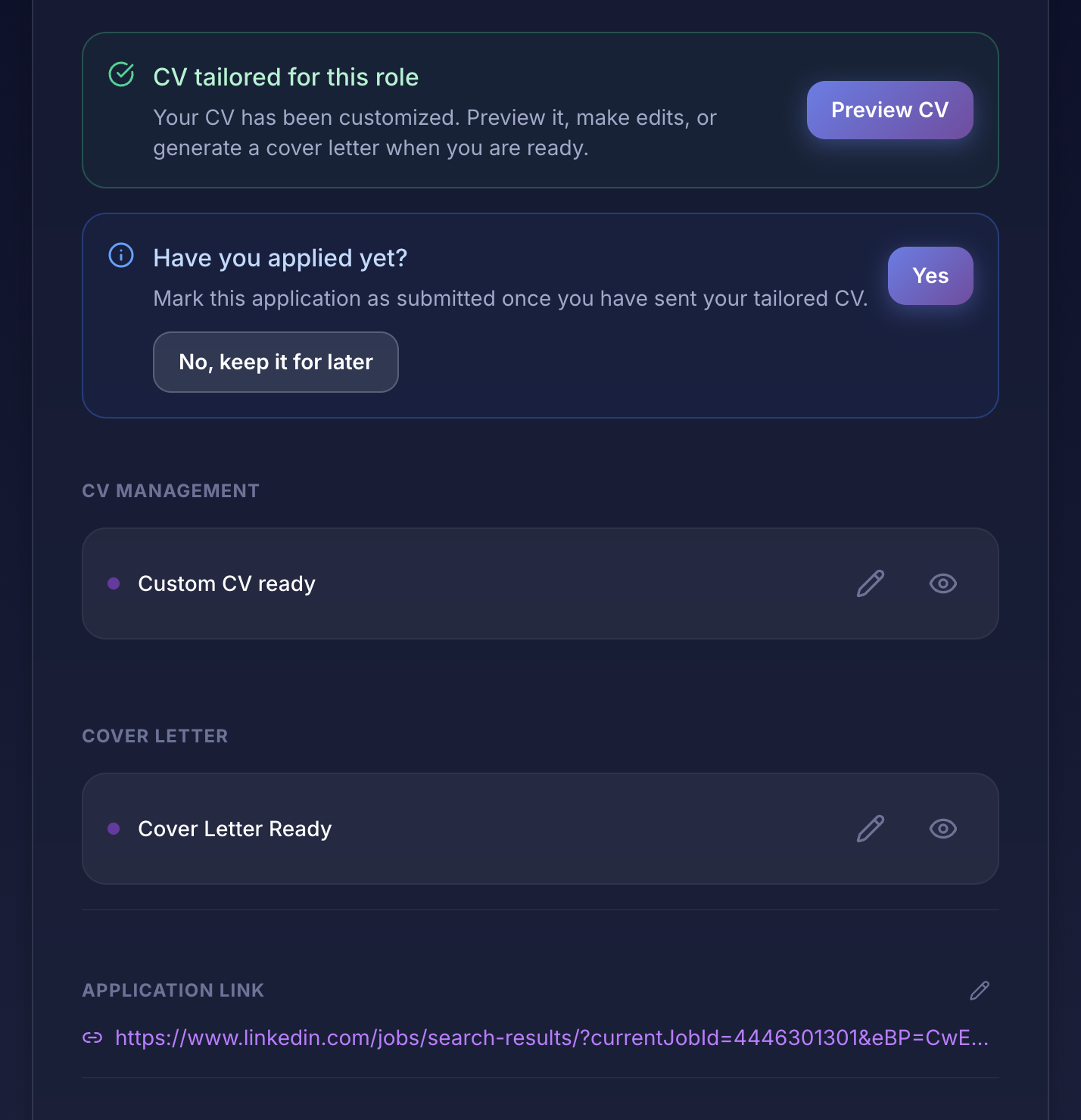
Preview & Review Your Tailored Resume
Inspect your completed, AI-customized resume before applying:
Access CV Preview: Click the purple “Preview CV” button inside the CV tailored for this role card to open the document viewer.
Inspect Final Formatting: Review how your rephrased bullet points, targeted keywords, and selected experiences flow in the final layout.
Quick Access: Use the CV Management section at the bottom to re-open or edit your “Custom CV ready” draft at any time.
Preview & Review Your Tailored Resume
Inspect your completed, AI-customized resume before applying:
• Access CV Preview: Click the purple “Preview CV” button inside the CV tailored for this role card to open the document viewer.
• Inspect Final Formatting: Review how your rephrased bullet points, targeted keywords, and selected experiences flow in the final layout.
• Quick Access: Use the CV Management section at the bottom to re-open or edit your “Custom CV ready” draft at any time.
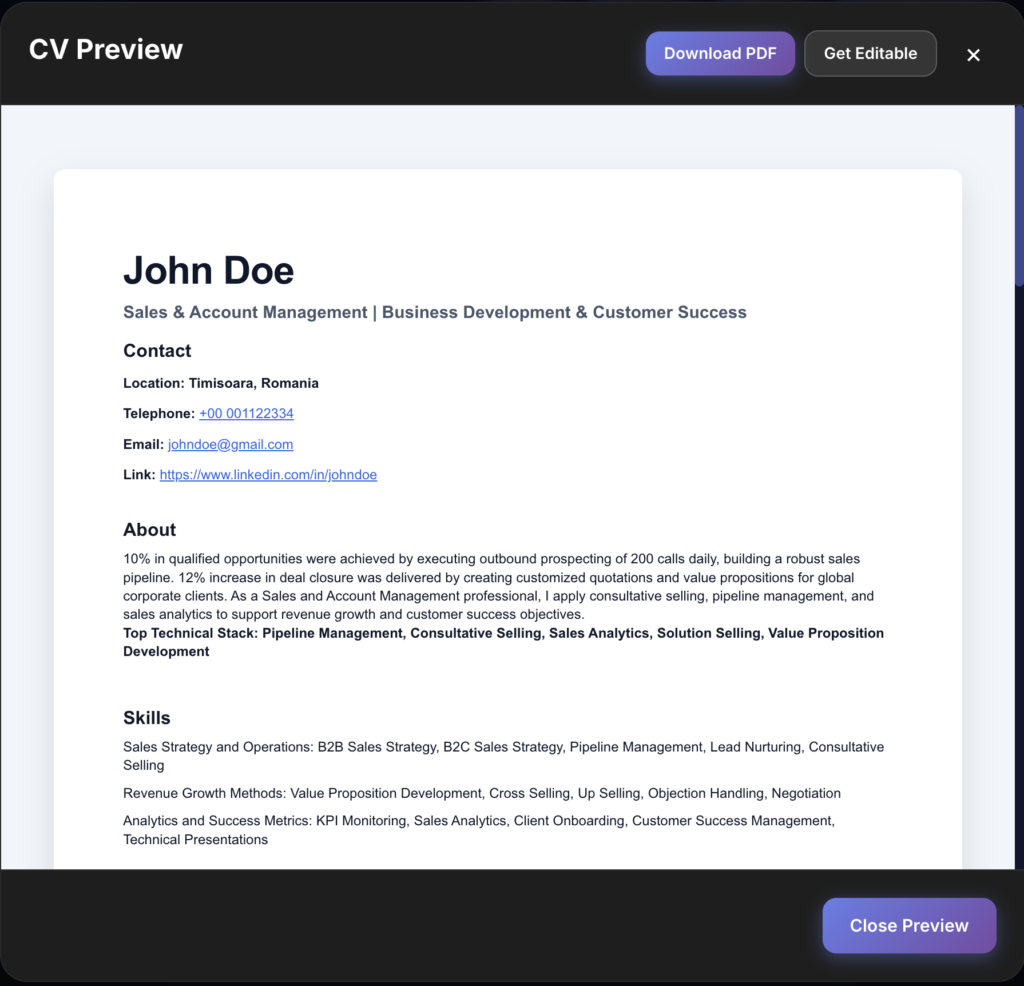
Preview, Export & Print Your Tailored CV
Review your finalized document layout and export it for your job applications:
Instant Document Preview: Use the CV Preview window to double-check page layout, spacing, and formatting before exporting.
Download PDF: Click “Download PDF” to save a print-ready version directly to your device for easy printing or online submissions.
Get Editable Version: Click “Get Editable” if you want to export an adjustable file format for further manual tweaks.
Preview, Export & Print Your Tailored CV
Review your finalized document layout and export it for your job applications:
• Instant Document Preview: Use the CV Preview window to double-check page layout, spacing, and formatting before exporting.
• Download PDF: Click “Download PDF” to save a print-ready version directly to your device for easy printing or online submissions.
• Get Editable Version: Click “Get Editable” if you want to export an adjustable file format for further manual tweaks.
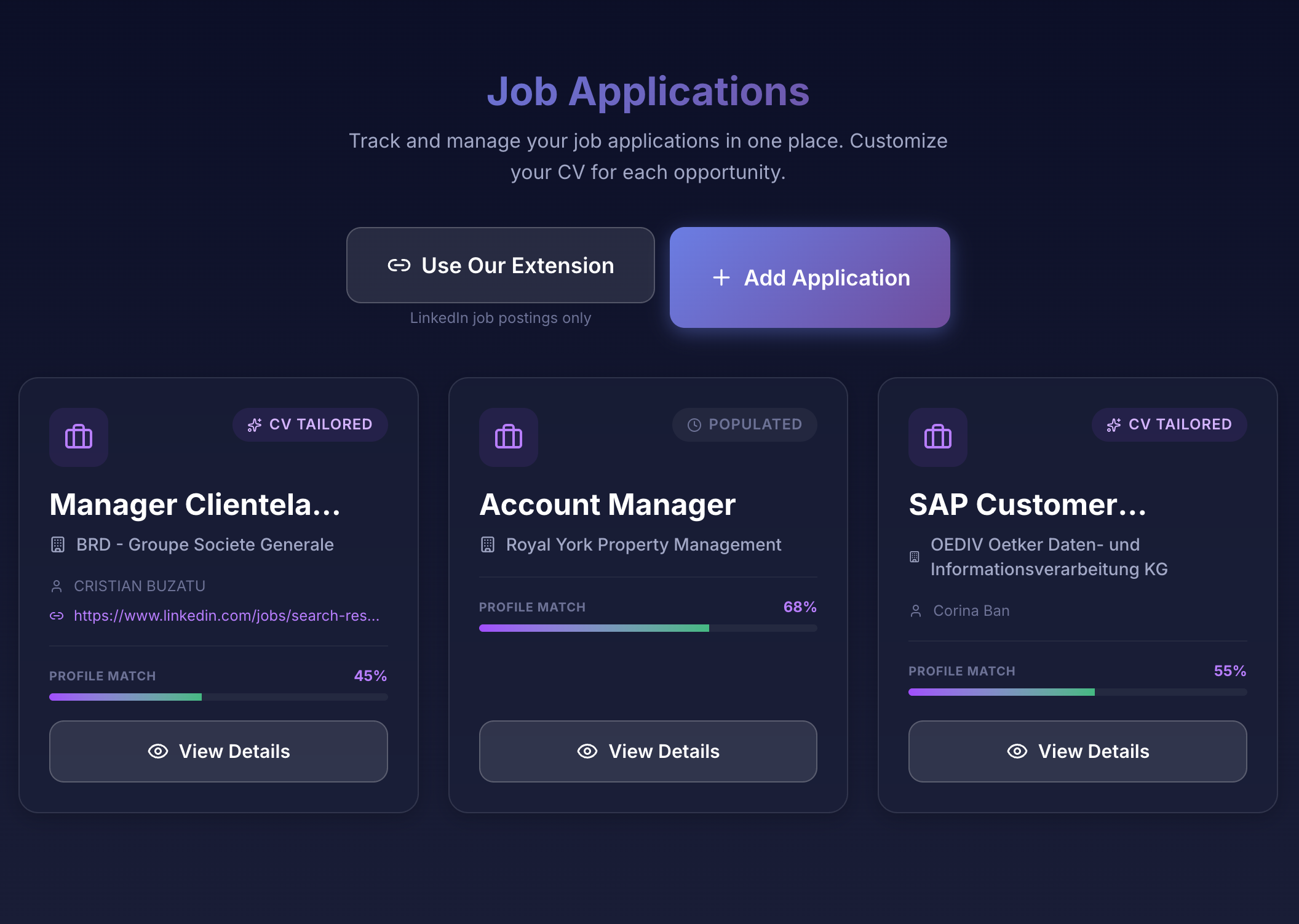
Track & Manage Your Applications
Keep your entire job search organized in one centralized hub:
Monitor Application Statuses: Quickly check badge labels on each card (like CV TAILORED or POPULATED) to see where each role stands in your pipeline.
Compare Match Ratings: View profile match scores at a glance to prioritize roles where your background aligns best.
Revisit Any Application: Click “View Details” on any card to revisit match breakdowns, edit tailored CVs, or download your documents anytime.
Track & Manage Your Applications
Keep your entire job search organized in one centralized hub:
• Monitor Application Statuses: Quickly check badge labels on each card (like CV TAILORED or POPULATED) to see where each role stands in your pipeline.
• Compare Match Ratings: View profile match scores at a glance to prioritize roles where your background aligns best.
• Revisit Any Application: Click “View Details” on any card to revisit match breakdowns, edit tailored CVs, or download your documents anytime.
Free private beta
An AI assistant for your resume not a replacement for you
ApplyAssists works from what you already have. Every change is visible, nothing gets fabricated, and you always get the final word before anything is sent.
Every change visible
No fabrication
You approve everything
Free to try
Free to try · No credit card required
Free private beta
An AI assistant for your resume not a replacement for you
ApplyAssists works from what you already have. Every change is visible, nothing gets fabricated, and you always get the final word before anything is sent.
Every change visible
No fabrication
You approve everything
Free to try
Free to try · No credit card required
F.A.Q.
Friendly & Strategic FAQ
While they look great, many creative templates use columns and graphics that “break” older scanning systems (ATS). Our tool creates a clean, single-column layout that ensures every word is actually readable by recruiters.
No. Most cv builders create “generic fluff” that recruiters ignore. We focus on “The Google XYZ Formula,” which links your real actions to measurable business results the only thing that truly gets people hired.
No. We don’t “hallucinate” or fake your data. We act as a professional career coach to help you “translate” your skills into the specific language an employer understands.
It’s simple. You provide your resume and a job link. Our AI resume builder engine identifies the employer’s top priorities and adjusts your bullet points so you look like a “safe pair of hands” who has already done the job.
Our tool follows the “Silence equals Risk” rule. We help you add short, neutral explanations for gaps or layoffs so recruiters don’t have to guess your story—making you a much safer candidate to hire.
We believe job seekers shouldn’t be overcharged. If you have your own API key, we give you the full power of our “Recruiter Secrets” prompts at the lowest possible cost. We want you to own your search, not be a subscriber forever.
Yes, you can! Our platform is designed for maximum flexibility, allowing you to connect your own OpenAI or Google Gemini API keys. By using your own key, you gain full control over your usage limits, access to specific models, and you only pay for exactly what you use directly to the AI provider.